
If you’ve been using AI chatbots for one-off questions, Hermes Agent is a different animal. It’s an open-source, self-improving AI agent built by Nous Research, designed to run continuously, remember context across sessions, and get better at recurring tasks the more you use it. Instead of a fresh conversation every time, Hermes builds persistent memory and refines its own skills as it works.
The catch is that an agent like this is only useful if it’s actually on. Run it locally and it disappears the moment your laptop sleeps. Run it on a VPS, and it stays reachable around the clock — from the terminal, from a web dashboard, or straight from Telegram, Discord, Slack, WhatsApp, or email.
This guide walks through deploying Hermes Agent on a Hostinger VPS using Hostinger’s Application Catalog, which handles the Docker setup for you. No manual installer, no dependency wrangling — just a VPS, a few clicks, and a short setup wizard.
Find the Latest Hostinger Offer
Get an extra 10% OFF on all Hostinger Plans
Use Code – MOTO
What You’ll Need
Before you start, gather the following:
- A Hostinger VPS plan. An entry-level plan is enough if you’re running Hermes against a cloud LLM API. If you plan to run local tools, browser automation, or parallel sub-agents, size up on vCPU and RAM.
- Basic terminal comfort. You’ll spend most of your time in Hermes’s CLI once it’s running.
- An LLM provider API key — OpenAI, Anthropic, or OpenRouter are common choices. Alternatively, Hostinger bundles its own AI credits (via nexos.ai) that you can use instead of bringing your own key, or you can skip keys entirely with Hermes’s Quick Setup.
- A messaging account (optional) — Telegram, Discord, Slack, or WhatsApp, if you want to reach the agent off the terminal.
- An Oxylabs account (optional) — only needed if you want Hermes’s web search and scraping tool backed by a dedicated scraping provider.
Step 1: Choose and Provision Your Hostinger VPS
Log into your Hostinger account and pick a VPS plan. A couple of things to weigh when choosing:
- API-only usage (Hermes calling out to OpenAI, Anthropic, etc.) needs relatively little horsepower — a base plan will do.
- Local models or heavier tooling (browser automation, multiple sub-agents running in parallel) benefit from more vCPUs and RAM, so consider a mid-tier plan if that’s your plan.
Pick a data center location close to you or your primary audience for lower latency, then finish provisioning. Once the VPS is active, you’ll land in the Hostinger VPS dashboard — this is your control center for everything that follows.
Step 2: Deploy Hermes Agent from the Application Catalog
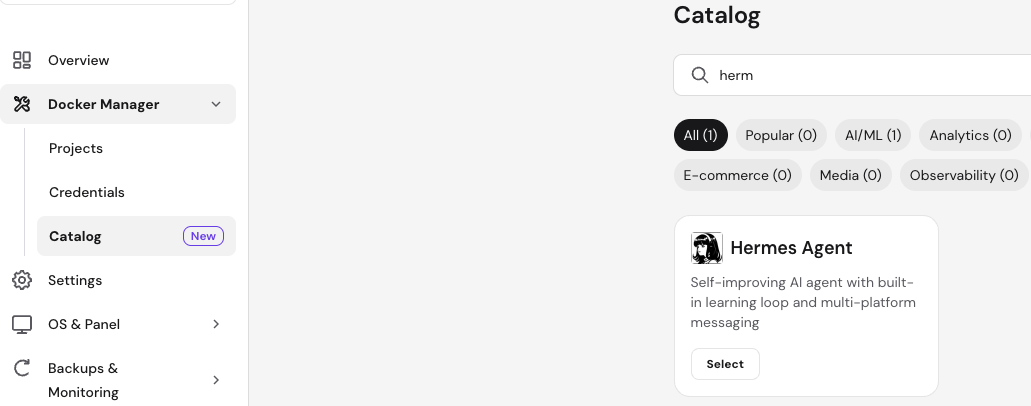
Hostinger ships Hermes Agent as a ready-made template, so you don’t need to touch a Dockerfile or write a compose file yourself.
- From your VPS dashboard, open Docker Manager.
- Go to the Catalog tab.
- Search for Hermes Agent and click Select.
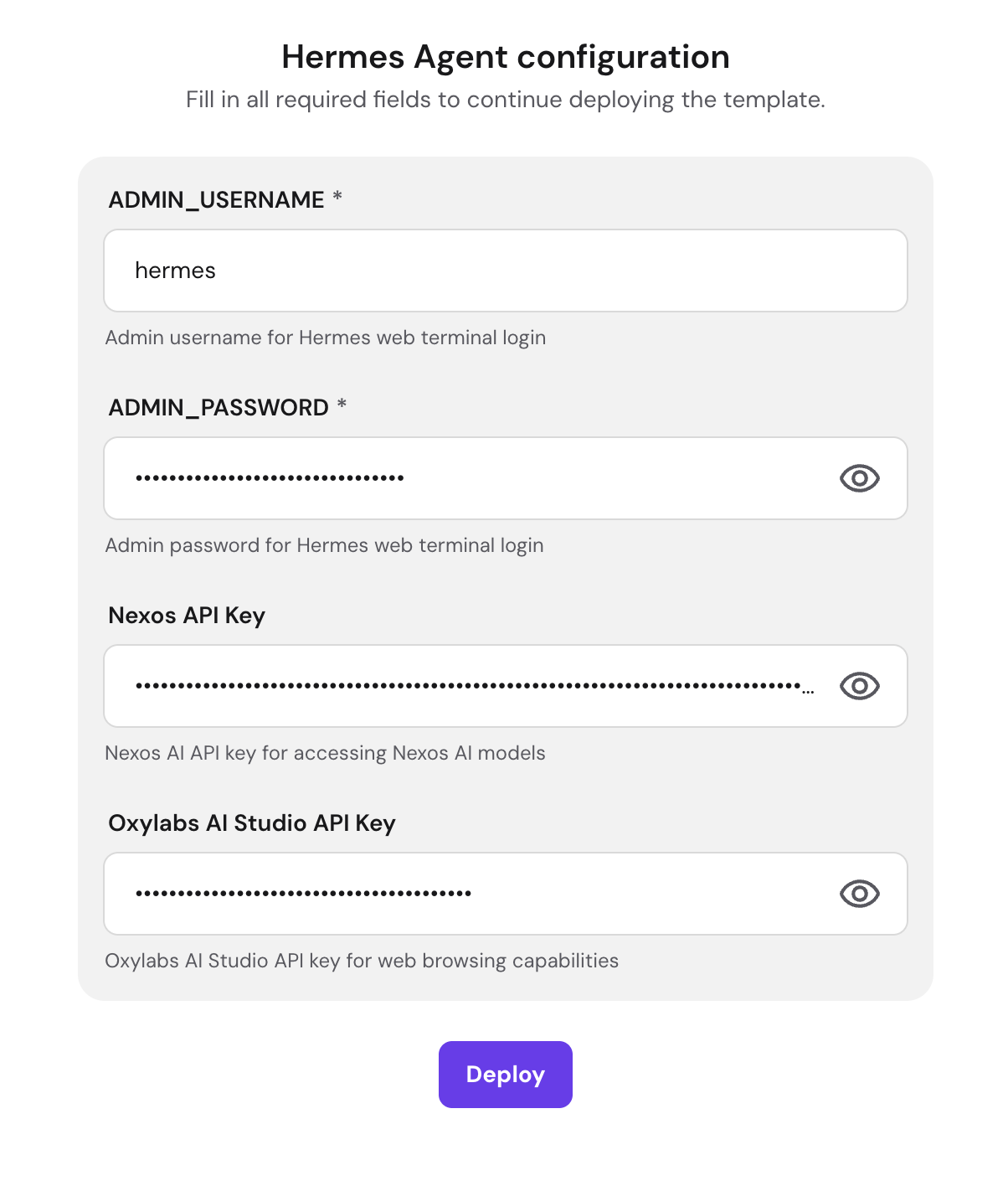
- When prompted, set an admin username and password for the deployment. Store these somewhere safe (a password manager, not a sticky note) — you’ll need them to manage the container later.
- If you’ve purchased Hostinger’s bundled AI or scraping credits (nexos.ai, Oxylabs), you can connect them here instead of supplying your own provider keys.
- Click Deploy.
Hostinger will now build and start the Hermes Agent container along with any supporting services it needs (such as a reverse proxy for routing). This typically takes a couple of minutes — grab a coffee.
Step 3: Open the Hermes CLI for the First Time
Once deployment finishes:
- Go back to your VPS dashboard and find your Hermes project.
- Click Open to launch the CLI directly inside the running container — no separate SSH session required.
- The very first time you open it, Hermes launches a short interactive setup wizard.
Navigation inside the wizard is simple: arrow keys to move between options, Enter or Space to select.
Step 4: Choose a Setup Mode

The wizard will ask you to choose between two setup paths:
- Quick Setup — signs you in through the Nous Portal with no API keys required. This is the fastest way to start experimenting with Hermes, but it ties your usage to Nous’s own provider access rather than your own accounts.
- Full Setup — lets you connect your own model provider(s), including any nexos.ai credits bundled with your VPS. This is the better choice if you want control over which model you’re using and how it’s billed.
For anything beyond quick experimentation, Full Setup is worth the extra two minutes.
Step 5: Configure Your Model Provider
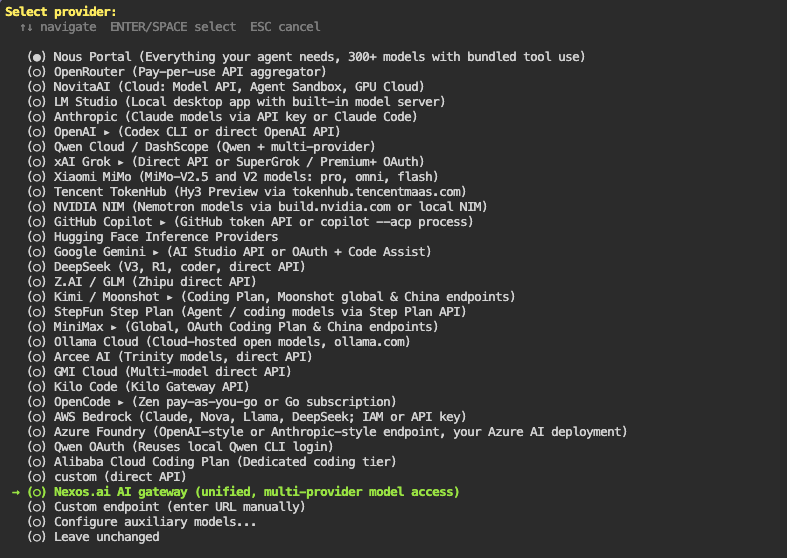
If you chose Full Setup, you’ll now pick a model provider from a list — options typically include a Hostinger-provided AI gateway, OpenAI, Anthropic, OpenRouter, and others.
- If you purchased nexos.ai credits with your VPS, select that gateway option — your API key will already be filled in, so you can simply continue.
- If you’re bringing your own key, paste it in when prompted.
Hermes is built to work with models that support large context windows (in the tens of thousands of tokens), which covers the Hermes model families as well as most major third-party models.
Step 6: Connect Your Messaging Channels
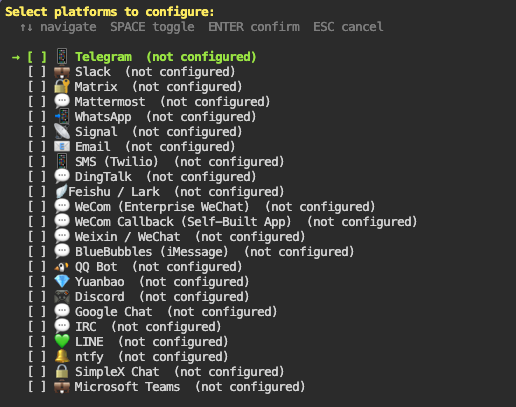
This is where Hermes stops being “a thing in a terminal” and becomes an agent you can actually reach from your phone.
- In the setup wizard, you’ll see a list of supported platforms: Telegram, Discord, Slack, WhatsApp, and email.
- Toggle on whichever ones you plan to use.
- Confirm your selection.
For most people, Telegram is the easiest starting point — creating a bot through Telegram’s BotFather takes under a minute and gives you a token to paste in. Discord and Slack require creating an app/bot through their respective developer portals, which takes a little longer but follows a similar pattern: create the app, grab the token, paste it into Hermes.
Step 7: Enable Tools
Next, the wizard lets you turn on built-in tools:
- Web Search & Scraping — if you purchased Oxylabs credits, enable this and select Oxylabs as the provider so Hermes can reliably search the web and pull content from pages.
- Other built-in tools cover things like file operations, terminal access, task delegation, and code execution.
A word of caution here: only enable the tools you actually need, especially early on. An agent with broad file and execution access on a live server is powerful, but it’s also something you want to understand and trust before opening it up fully.
Step 8: Verify Everything Works
Before you start building workflows, confirm the basics are actually functioning:
- Run Hermes’s built-in health-check step (often exposed as a “doctor”-style command) to confirm your Python/runtime environment, model connectivity, and configuration are all in order.
- Send a simple test prompt — something like “hello, are you working?” — to confirm the round trip to your LLM provider is functioning.
- If you connected a messaging channel, send a test message from that platform and confirm Hermes responds.
Fix anything the health check flags before relying on the agent for real tasks — most setup issues (a bad key, a missing dependency, a gateway that isn’t listening) show up here rather than mysteriously later.
Step 9: Start Using Hermes Agent
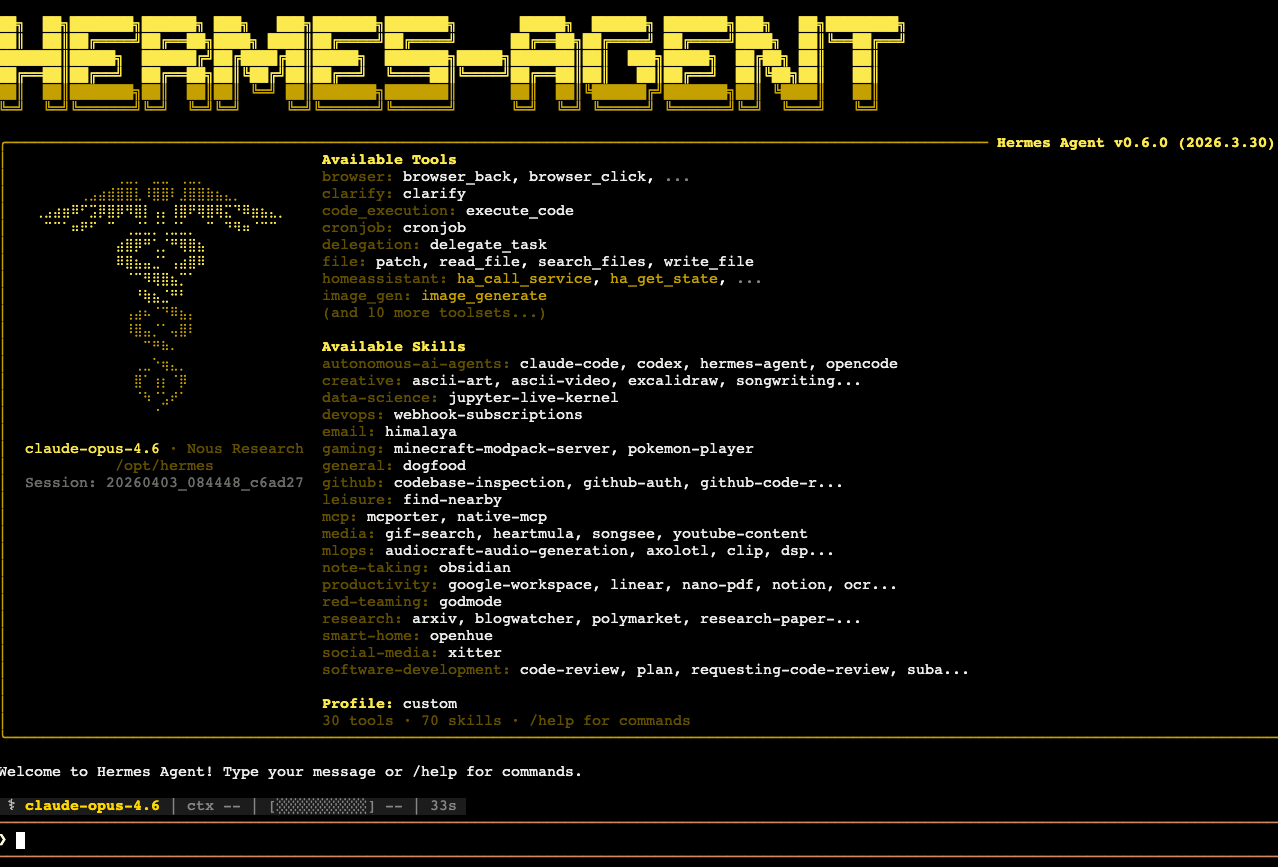
With setup complete, you’re in CLI mode and ready to work. A few ways to get oriented:
- Type
/helpto see the full list of supported commands and actions. - Give it a direct task — Hermes can execute commands, manipulate files, delegate sub-tasks, and pull in external services depending on which tools you enabled.
- Try connecting it to a recurring workflow rather than a one-off question. Hermes is built for continuity: a daily report, a scheduled digest, an ongoing research task. That’s where its persistent memory and self-improving skills loop actually pay off — the more you use it for a given workflow, the less you have to re-explain each time.
Step 10: Secure and Maintain Your Deployment
Running an agent with real tool access on a public-facing server means treating it like production infrastructure, not a toy.
- Keep any web dashboard or admin UI private. If Hermes exposes a browser-based dashboard, put it behind HTTPS, authentication, and firewall rules rather than leaving it open on a public port.
- Avoid running as root for day-to-day operation where you can help it — use a scoped user account instead.
- Protect your credentials. Provider API keys and messaging bot tokens should be treated as secrets — don’t paste them into logs, screenshots, or shared documents.
- Back up the agent’s memory and config directory on a schedule. Since Hermes builds up context and skills over time, losing that data is a real setback, not just an inconvenience. Many VPS providers, including Hostinger, offer automated snapshots for a small additional fee.
- Review logs periodically and keep tool permissions scoped to what you’re actually using — trim access rather than granting everything up front.
Troubleshooting Common Issues
- Deployment fails or the container won’t start — double-check your VPS has enough resources for the plan you selected, and retry the catalog deployment.
- Provider key rejected / model not responding — re-check the key for typos or expired credits, and confirm the selected provider matches the key type.
- Messaging gateway not delivering messages — verify the bot token was entered correctly, that the channel was toggled on during setup, and that the gateway service is running.
- Agent seems to lose memory after a restart — confirm your config/memory directory is persisting correctly between container restarts rather than resetting each time.
Wrapping Up
At this point you have a live, self-improving AI agent running on your own Hostinger VPS — reachable from your terminal and, if you set it up, from Telegram, Discord, Slack, WhatsApp, or email. From here, the real work is building out the workflows you actually want automated: recurring reports, research tasks, cross-platform notifications, or anything else that benefits from an agent that remembers what it did yesterday.
A good next step is to start small — one real recurring task — and let Hermes’s skills loop refine it over a week or two before layering on more tools or integrations.
FAQ
No — Hermes runs perfectly well from the CLI alone. Messaging channels are optional and mainly useful if you want to reach the agent without SSHing in.
Your monthly cost is the Hostinger VPS plan plus whatever LLM API usage you generate, unless you’re using Hostinger’s bundled AI credits. Costs scale with how much you actually use the agent.
Yes — Hermes re-reads its configuration on launch, so you can re-run the provider setup step at any time to switch or add providers.